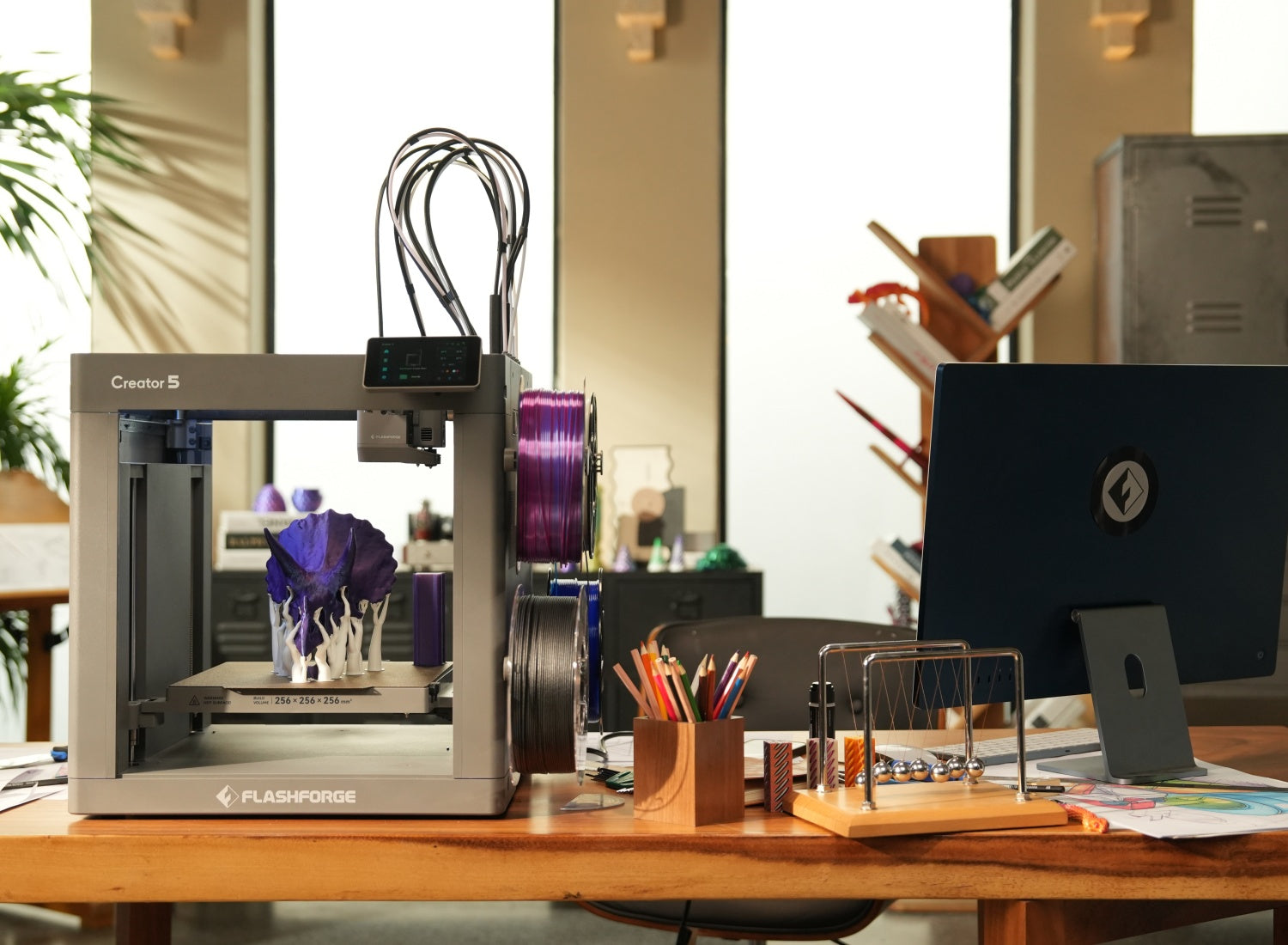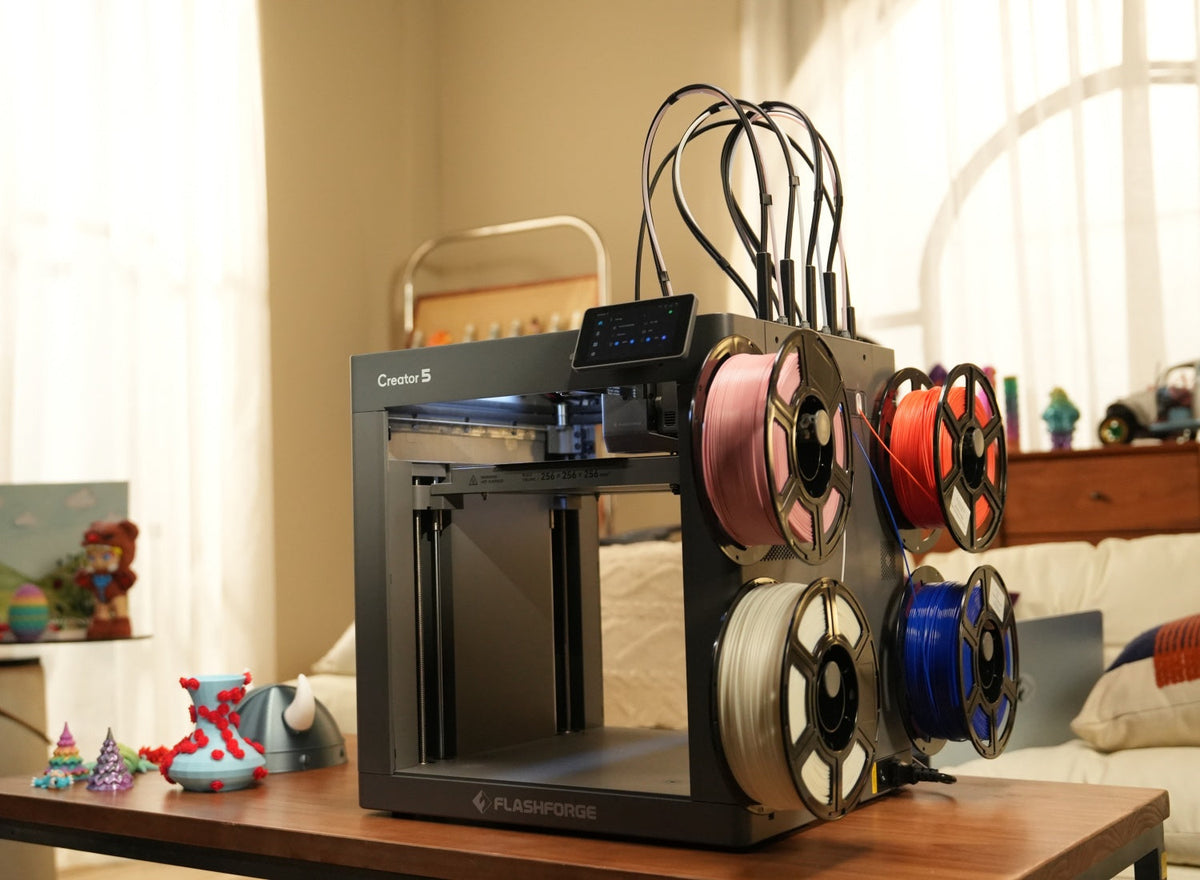



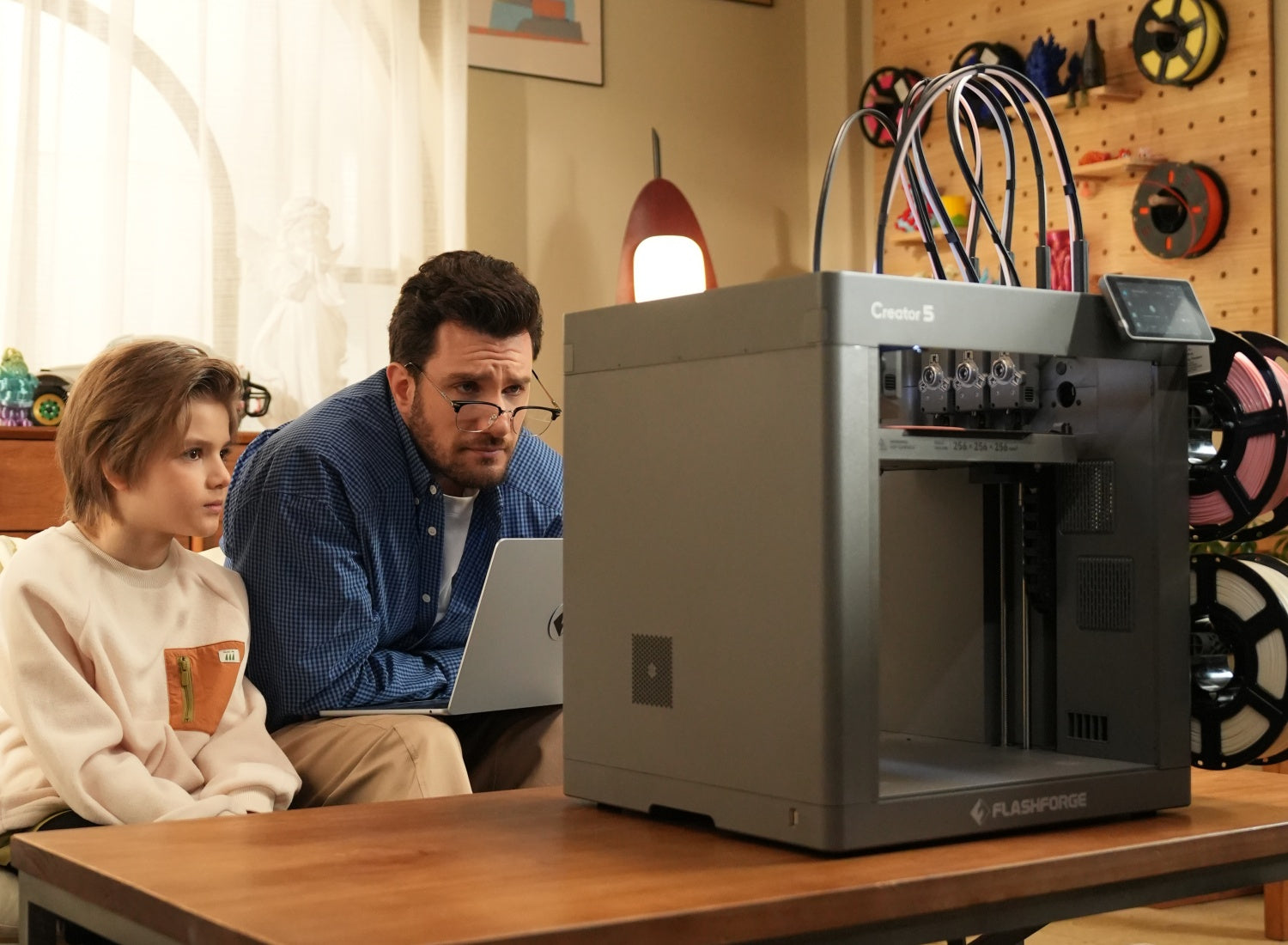
A built-in camera makes a 3D printer easier to monitor. Instead of checking the machine repeatedly during a long print, you can review progress remotely, spot visible problems earlier, and record time-lapse videos.
The feature becomes even more useful when several printers are running at once. A hobbyist may use it to check an overnight project. A teacher may monitor a classroom model from another workstation. A small studio may use camera feeds to keep track of several jobs without interrupting its workflow.
This guide explains the main benefits of built-in cameras, the features worth comparing, and the Flashforge models that fit different printing needs.
What Is a 3D Printer with a Built-In Camera?
A 3D printer with a built-in camera includes an integrated camera aimed at the print area. It allows you to view the print bed and model while a job is running.
Depending on the printer and software platform, the camera may support live monitoring, time-lapse recording, remote print management, and multi-printer control.
This is especially useful in 3D printing because many projects take several hours to complete. A camera lets you check progress without staying beside the printer throughout the job.
A built-in camera is different from an optional camera kit. An integrated system is ready to use without an additional installation step.

Key Benefits of Built-In Camera 3D Printers
A camera does not change the printing process itself. Its value comes from better visibility and faster decision-making.
Remote Print Monitoring and Control
Remote monitoring allows you to check whether the first layer adhered correctly and whether the model is still printing as expected.
This is useful for overnight prints, repeated production jobs, and projects that continue while you work elsewhere. Instead of returning to the printer regularly, you can review the live feed from a phone or computer.
Software support matters. The Flashforge guide to Orca and Orca-Flashforge explains that Orca-Flashforge supports wireless printing and remote monitoring. The platform also works with the FlashMaker app, which helps manage print progress and multiple machines.
Remote access improves convenience, but it does not replace proper setup. Check the bed, nozzle, filament, and print profile before starting a job.
Real-Time Failure Detection and AI Alerts
A clear camera feed can help you notice visible failures earlier.
Common warning signs include a detached model, severe warping, shifted layers, excessive stringing, and filament buildup around the nozzle. Catching these problems early can prevent wasted material and print time.
AI alerts require additional software support. A built-in camera does not automatically mean that the printer can identify failures, send automated warnings, or pause a job by itself.
When AI monitoring is a priority, check the official product page carefully. Confirm which failures the system can identify and how it responds when a problem is detected.
Time-Lapse Recording for Projects
Time-lapse recording turns a long print into a short video.
This is useful for documenting a project, sharing finished work, or explaining the printing process in a classroom. It can also help a studio show clients how a model was produced.
A built-in camera simplifies the setup because the camera is already positioned around the print area.
Improved Workflow for Multi-Printer Users
Camera monitoring becomes more valuable when several printers are running at the same time.
A studio, classroom, or small print farm can review progress without walking between machines repeatedly. This makes it easier to focus on the printers that need attention.
Multi-printer control is especially useful for repeat jobs. The goal is not to remove human oversight. It is to make daily monitoring more efficient.
Essential Features to Look For
A built-in camera is only useful when it provides a clear view and fits into the wider printing workflow.
Before choosing a printer, compare image quality, software integration, automation features, and chamber visibility.
Camera Resolution and Frame Rate Quality
Resolution affects how clearly you can see the print bed, nozzle area, and model.
A basic camera may be enough to confirm that a part is still attached to the plate. A clearer feed is more useful when you need to inspect visible defects or monitor several printers.
Frame rate also matters. A smoother image makes it easier to understand what is happening around the nozzle.
For reference, the Flashforge Creator 5 and Creator 5 Pro both include a built-in Full HD camera with 1280 × 720 resolution at 30 fps.
App Integration and Cloud Control
A camera feed is more practical when it connects to an app or printer-management platform.
Look for remote viewing, wireless printing, job history, and multi-printer control. A hobbyist may only need a live feed. A print farm may need a more organized device-management workflow.
FlashMaker and Orca-Flashforge support remote monitoring and multi-machine management, helping users review progress without treating each printer as a separate workstation.
How to Judge AI Failure Detection Accuracy
AI failure detection should be evaluated separately from camera quality.
Start by checking which problems the system claims to recognize. Useful examples include detached prints, severe warping, filament tangles, and unusual material buildup.
Then check what happens after detection. A system may send a notification, allow remote pausing, or stop the print automatically. False alerts also matter. Frequent unnecessary warnings can make the feature less useful.
The Flashforge models covered below emphasize remote monitoring, time-lapse recording, and multi-printer management. Confirm the latest product specifications separately when automated AI alerts are essential to your workflow.
Lighting and Enclosure Visibility
A camera needs a clear view of the build area.
Built-in lighting makes it easier to inspect the first layer, nozzle movement, and visible surface issues. A clear enclosure also helps when checking the printer in person.
Consider the camera angle as well. A view that works for a small model may become less useful when a tall print blocks the nozzle area.
What Is the Best 3D Printer with a Camera?
The best 3D printer with a camera depends on your workflow.
A homemaker may prioritize easy setup and time-lapse recording. A creative studio may need multi-color printing and multi-printer control. A professional team may also need an enclosed chamber and broader material support.
Quick Comparison of Top Picks
| Model | Current Listed Price | Discounted price | Camera and Monitoring Features | Best For |
| Flashforge Adventurer 5M Pro | $449 | $379 | Built-in camera, remote monitoring, and time-lapse recording | Home makers, classrooms, and everyday printing |
| Flashforge Creator 5 | $799 | $699 | Built-in camera, 1280 × 720 at 30 fps, remote monitoring, and multi-printer management | Multi-color projects, studios, and small-batch customization |
| Flashforge Creator 5 Pro | $949 | $849 | Built-in camera, 1280 × 720 at 30 fps, remote monitoring, and multi-printer management | Professional prototyping and engineering-material workflows |
Prices are based on the Flashforge U.S. website when this article was prepared. Add your preferred printer to your cart to receive the corresponding promotional discount shown in the table. Please check the product page for the latest offer details and availability.
Best Home and Classroom Pick: Flashforge Adventurer 5M Pro
The Flashforge Adventurer 5M Pro is a practical option for home makers, classrooms, and smaller workspaces.
Its built-in camera supports remote monitoring and time-lapse recording. This makes it easy to check a longer print from another room or document a classroom project without installing a separate camera kit.
The printer also uses an enclosed structure and provides a 220 × 220 × 220 mm build volume. Automatic leveling simplifies setup, while the removable PEI steel plate makes routine print removal easier.
For a closer comparison of the Adventurer series, read the Flashforge Blog article 2025 Flashforge Adventurer 3D Printer Reviews.
Best 4-Toolhead Pick: Flashforge Creator 5
The Flashforge Creator 5 is designed for makers and small teams that need camera monitoring alongside multi-color and multi-material printing.
It includes a built-in camera with 1280 × 720 resolution at 30 fps, remote monitoring, and multi-printer management. Its four independent toolheads support material changes without the purge waste created by conventional single-nozzle switching systems.
The 256 × 256 × 256 mm build volume is suitable for personalized products, classroom models, decorative projects, and small-batch customization.
The Creator 5 uses an open-frame design. It is a strong fit for creative workflows, but chamber-dependent engineering materials are better suited to an enclosed printer.
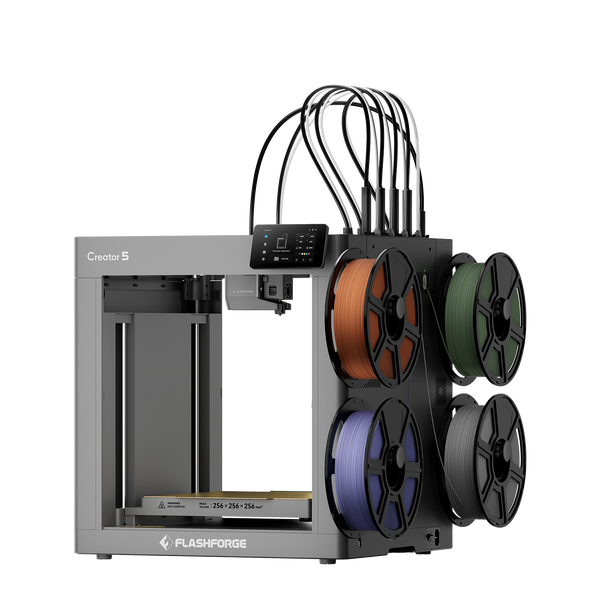
Flashforge Creator 5 4-Toolheads Multi-Color 3D Printer | 500% Faster, Zero Purge Waste
Best Enclosed High-Speed Pick: Flashforge Creator 5 Pro
The Flashforge Creator 5 Pro is designed for professional workflows that need remote monitoring and a more controlled printing environment.
Like the Creator 5, it includes four independent toolheads, a 1280 × 720 camera at 30 fps, and multi-printer management. It also adds an enclosed frame and an actively heated chamber up to 65°C.
Its official material list includes PC, PA, PC-ABS, and PPS-CF for enclosed printing. Before starting a new project, compare the selected 3D printer filament with the printer's supported-material list and the requirements of the finished part.
These features make the Creator 5 Pro relevant for engineering prototypes, product-development teams, and selected small-batch production workflows.
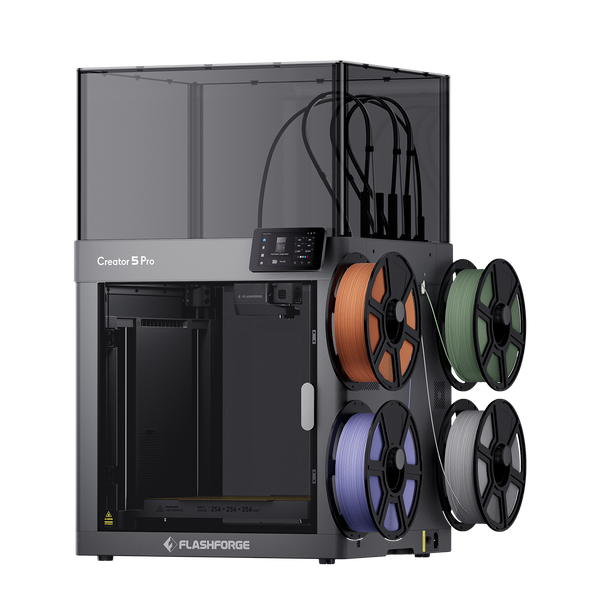
Flashforge Creator 5 Pro 4-Toolheads Enclosed Multi-Color 3D Printer | 500% Faster, Zero Purge Waste
What Are the Best Use Cases for a 3D Printer with a Camera?
The value of a built-in camera depends on how the printer will be used.
Home Makers and Hobbyists
A built-in camera is useful for home projects that run for several hours.
You can check whether a model is still attached to the bed, review progress from another room, and record a time-lapse without adding an external accessory.
For this type of workflow, the Adventurer 5M Pro provides a practical balance of remote visibility and easy setup.
Small Businesses and Print Farms
A camera feed helps small businesses monitor several jobs more efficiently.
Instead of checking every printer in person, a team can review progress remotely and respond when a model shows visible problems. Multi-printer management also helps organize repeated production runs.
The Creator 5 series is suitable for this workflow because it combines camera monitoring with fleet-management support.
Education and Classroom Environments
Camera monitoring helps teachers track classroom projects without interrupting lessons.
Time-lapse videos can also show students how a digital model becomes a physical object layer by layer.
The camera should support normal classroom supervision, not replace it. Enclosure design, workspace organization, and clear operating rules still matter.
Remote Manufacturing and Prototyping
Professional prototypes often require long prints and several design revisions.
Remote monitoring allows a team to review progress while working on the next version. When several printers run in parallel, centralized management reduces unnecessary interruptions.
For projects that also need chamber control and engineering materials, the Creator 5 Pro is the stronger option.

Conclusion
A built-in camera makes a 3D printer easier to monitor, document, and manage.
The Adventurer 5M Pro is a practical choice for homes and classrooms. The Creator 5 adds four independent toolheads for multi-color and multi-material projects. The Creator 5 Pro combines camera monitoring with an enclosed frame and active chamber heating for more demanding workflows.
The camera is only one part of the decision. Compare the print volume, material support, software platform, and enclosure design before buying.
The right printer is the one that matches the projects you plan to make and the level of control your workflow requires.
FAQ About 3D Printers with Cameras
Do I Need a Camera on My 3D Printer?
Not necessarily.
A camera becomes useful when prints run for several hours, the printer sits in another room, or several machines need to be monitored at once.
It can also simplify time-lapse recording and project documentation.
Can 3D Printer Cameras Detect Print Failures?
A camera can help you identify visible failures through a live feed.
Examples include a detached print, severe warping, shifted layers, and filament buildup around the nozzle.
Automated failure detection is a separate software feature. A camera alone does not guarantee AI alerts or automatic print pausing.
Are Built-In Cameras Accurate Enough for Monitoring?
Built-in cameras are generally suitable for checking progress and spotting obvious visual problems.
Their usefulness depends on resolution, frame rate, lighting, camera angle, and model size. A live feed may not reveal small surface defects.
Inspect the finished print in person when dimensional accuracy or surface quality matters.
Do All Smart 3D Printers Include Cameras?
No.
Some printers include an integrated camera. Others support an optional accessory or do not offer camera monitoring.
Check whether the camera is included and whether the printer supports remote viewing, time-lapse recording, app control, and multi-printer management.
Is Remote 3D Printing Safe and Reliable?
Remote monitoring is useful, but it should not replace basic checks.
Before starting a print, confirm that the build plate is clean, the nozzle is in good condition, the material profile is correct, and the printer is placed in a suitable workspace.
Use the camera feed to monitor progress and check the printer in person when practical.