

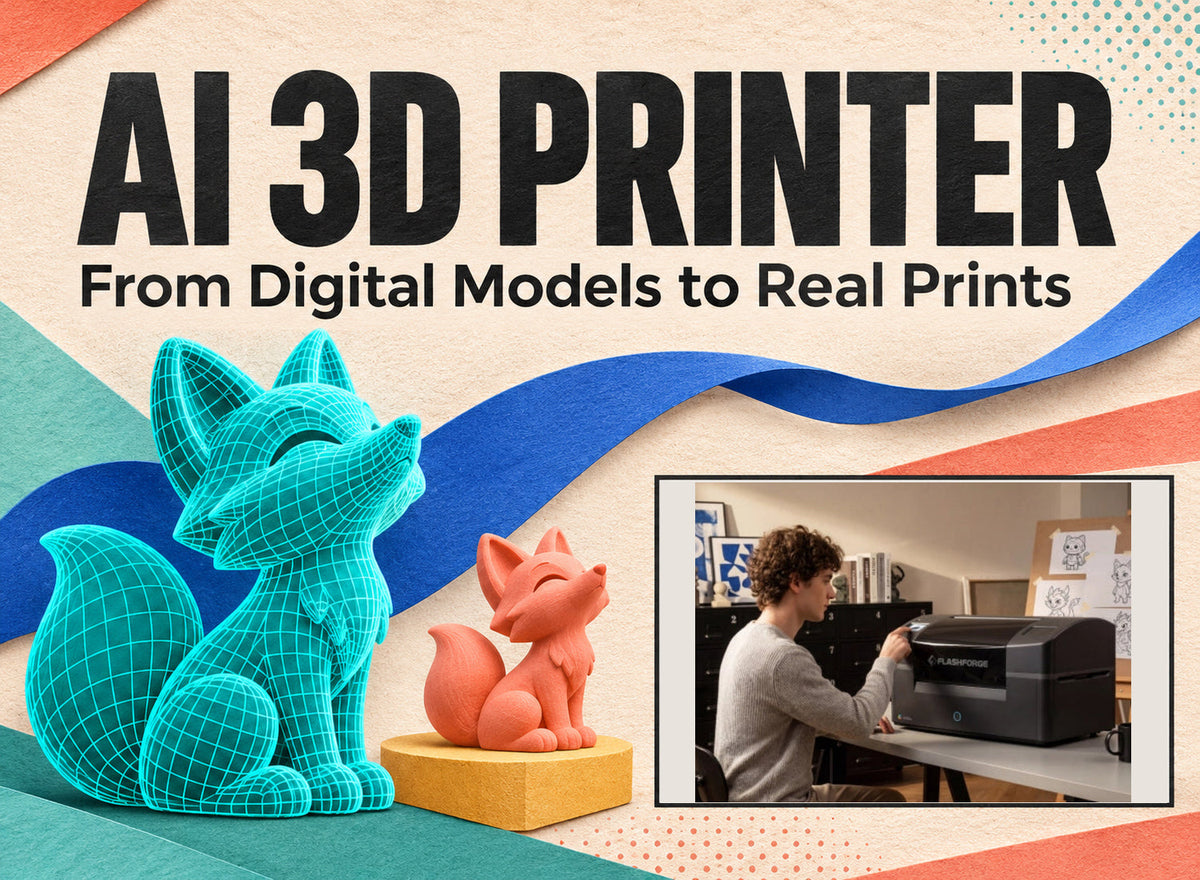
An AI 3D printer usually means a printing workflow that uses artificial intelligence for a particular task, such as creating a model from an image or identifying a possible print defect. It does not necessarily mean the machine can turn any idea into a finished object without preparation. The useful question is which task the AI performs and what you still need to check.
For a beginner, the biggest benefit may happen before printing starts: getting an initial model without building every shape manually. For an experienced maker, monitoring or preparation assistance may matter more. This guide explains those differences and how to match an AI-assisted project to an appropriate Flashforge printer.
What an AI 3D Printer Actually Does
AI can appear at several points in 3D printing. A model generator proposes geometry from a prompt or reference image. Preparation software may suggest settings. A vision system may examine camera images for signs of a problem. These functions require different software, data, and integrations.
NIST research on generative AI for additive manufacturing found that performance varied across manufacturing-related tasks. That supports evaluating a specific function rather than assuming an AI label describes the capabilities of the entire machine.

AI Model Generation and Printer Automation
Automatic bed leveling, filament detection, and routine calibration can simplify printing without being evidence of machine learning. Similarly, a camera feed lets you watch a job; automatic failure detection requires an additional supported capability. Check what a product actually detects, whether it alerts or pauses, and which software or subscription it needs.
When comparing a desktop 3D printer, separate those conveniences from the basics: suitable materials, build space, maintainability, and a compatible slicer. A slicer turns a digital model into the layer instructions the printer follows. AI-generated geometry still has to pass through a preparation workflow.
What an AI Generated Model Still Needs
A convincing image of an object is different from a usable three-dimensional model. Before printing, check the geometry itself, its intended size, and how its colors or materials will be represented. The appearance on screen cannot answer all three questions.
A Complete and Usable Shape
Inspect the underside, back, thin details, and connections between separate features. A single reference image may leave parts of the shape unseen; review what the generator supplied in those areas. Thickening a fragile ear or joining a floating accessory can be more important than adding surface detail.
Rotate the actual exported model rather than judging a preview thumbnail. Look for a stable contact area, enclosed volumes, and features that remain present when you view the model from behind. Keep an editable copy before making repairs. If the design needs substantial changes, simplify the shape before trying to preserve every decorative feature.
A mesh describes a surface with small faces, usually triangles. Autodesk's mesh repair documentation identifies holes, incorrectly oriented faces, and related issues that need attention before further manufacturing operations. Repair tools can change geometry, so compare the result with the original design afterward.

Dimensions and a Suitable Material
A decorative character can tolerate a different level of dimensional uncertainty from a bracket that must fit a measured hole. For a mating part, define the dimensions explicitly and verify them in a modeling tool. A plausible AI-generated shape does not establish fit, strength, or material suitability.
For filament projects, choose 3D printer filament according to the object's actual use. A display figure and a flexible grip need different properties. Flashforge's guide to creating 3D models for printing explains the wider preparation process beyond obtaining the first model.
From an AI Model to a First Print
Start with a small decorative object whose appearance matters more than a precise mechanical fit. A stylized animal with a stable base and connected features makes it easier to learn which changes affect the result.
A useful starting prompt might be: “A stylized seated fox on a flat oval base, with thick ears and a tail joined to the body.” This describes features you can inspect after generation. Treat requested dimensions as design intent until you verify the exported file; a number in the prompt does not replace a measurement.
- Describe the intended object, pose, base, and major features. Choose a simple shape for the first attempt.
- Export the model, inspect it from every side, and resolve missing surfaces or disconnected details.
- Set the intended size and import it into preparation software that supports your exact printer and material.
- Review orientation, supports, color assignments, estimated material use, and the sliced preview.
- Print a trial, inspect the details that matter, and revise the file or settings before repeating the job.
For supported filament printers, Flash Studio Desktop combines slicing, transfer, and device-management functions. Its official page also describes LAN-only and cloud transfer modes and live viewing with suitable camera hardware. These documented functions should be evaluated separately from any claim about AI defect recognition.
CJ270 uses ColorPrint for its full-color preparation workflow. Use the software intended for the process; an FDM project and a resin material-jetting job do not share interchangeable machine instructions.
Before buying, check the availability of compatible 3D printing accessories and replacement parts. AI assistance does not remove ordinary upkeep, material handling, or the need to maintain the printing system.
Choose the Output Before Choosing the Printer
An AI model can have geometry, surface colors, and a texture map that supplies its visual detail. Your printing process determines which of those features can become physical. Decide what you need to preserve before choosing hardware.
For example, a painted stripe may exist only in the texture, without a separate raised shape. It will not automatically become another filament color. Check whether your preparation tool can use the exported appearance data or whether you need to assign the regions manually.
| Your project | Printing approach to consider | Preparation priority |
|---|---|---|
| A simple shape or single-color prototype | Filament printing with a suitable material | Geometry, dimensions, and support placement |
| A model with distinct colored regions | Multicolor filament printing | Assign printable regions to available colors |
| A textured character or colorful keepsake | Full-color material jetting | Preserve supported color data and inspect the preview |
A multi tool head 3D printer can use separate filament tools for different colors or compatible materials. That differs from reproducing a continuous photographic texture. Flashforge's comparison of multicolor and full-color printing explains why those goals lead to different workflows.
If the project instead depends on temperature-sensitive engineering filament, an enclosed 3D printer with appropriate thermal control may be relevant. An AI modeling feature should not outweigh the material requirements of the part.
Flashforge Options for AI Assisted Projects
The most relevant choice depends on whether you want a colorful visual object or a filament part with selected colors and material properties. The models below address those different outputs rather than a generic promise of autonomous printing.
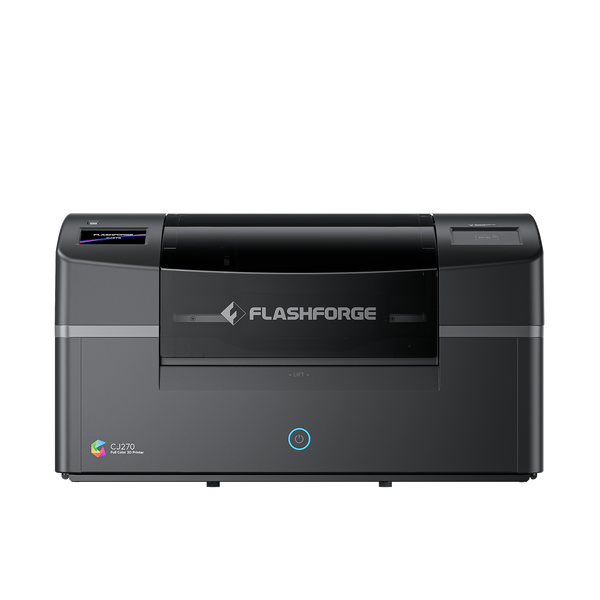
CJ270 for Full Color Characters and Keepsakes
The Flashforge CJ270 is relevant when an AI-assisted character, stylized portrait, or decorative figure needs color as part of its appearance. Its official page presents an image-to-model AI-assisted workflow alongside the printer. Verify the current modeling service, export options, and any access conditions before building a project around that route.

CJ270 uses MultiJet Printing, which deposits photosensitive resin droplets and cures them with UV light. It combines CMYK, white, and clear materials, with water-soluble support. ColorPrint handles preparation for this process. Inspect the supported color information and geometry before printing, then follow the documented support-removal and finishing steps. Screen color and physical appearance should be checked on a sample when they matter to the project.
Creator 5 for Filament Models and Material Experiments
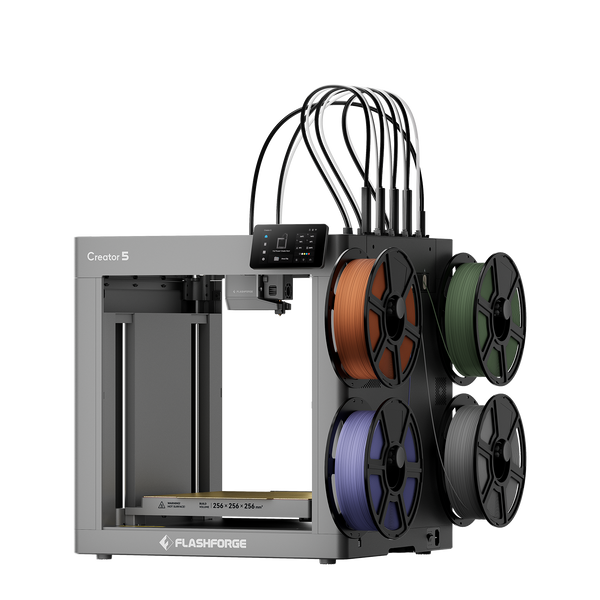
The Flashforge Creator 5 suits AI-originated shapes that will be prepared as filament prints, including models with distinct colored regions. Four independent toolheads and automatic toolhead calibration support a different workflow from passing several filaments through one shared nozzle.
Use it when those color or compatible material changes are useful to the actual object. A texture on the original model still needs an appropriate printing representation, and material combinations need suitable profiles and testing. The hardware's calibration features do not validate the AI-generated design or its mechanical performance.
What to Budget and Verify Before Buying
Compare the complete route from model creation to an acceptable finished object. Alongside the printer, account for modeling access or export charges where applicable, materials, trial prints, routine parts, and finishing supplies. A quick digital generation does not predict the duration or cost of the physical job.
Check the generator's export formats against the preparation software, then try an example file before committing to the workflow. A model that displays correctly in one application may lose textures or change scale during transfer. Keep the original export so you can trace where a change occurred.
For camera-based assistance, confirm printer and firmware compatibility, network requirements, and the available response to a detected issue. Treat a remote view, an alert, and an automatic pause as distinct features. Choose the capability you can verify rather than relying on an AI badge.
Frequently Asked Questions
File transfer and software access often determine whether an AI-assisted project stays manageable. Resolve these details before you invest time in a complicated model.
Do I need a special printer for an AI generated STL
Usually, its origin is less important than its geometry and compatibility. A suitable STL can be prepared for a conventional printer. Ordinary STL does not carry the full-color textures you may have seen in the generator.
Can a text prompt go straight to the machine
Only a specifically supported end-to-end service could provide that experience. In a normal workflow, the prompt produces a model, which still needs inspection, preparation, and printer-specific instructions.
Can I use an AI image without creating a 3D model
A flat image alone is not a complete three-dimensional object. You need an appropriate conversion or modeling process for the intended result, such as a relief, lithophane, or fully shaped figure.
Does every AI workflow require cloud access
No single connectivity rule covers every tool. Check generation, preparation, and printer transfer separately. A printer's local transfer mode does not establish whether an independent model generator works offline.
Will AI eliminate support removal and finishing
No. Preparation assistance can help with layout or support planning, but the physical process still determines cleanup. Evaluate the full workflow, including support removal and inspection, when choosing a system.
Start with One Model You Can Evaluate
Choose a simple object, confirm its export path, and inspect one trial print. Use that result to decide whether your next improvement should be in modeling, preparation, material choice, or printer capability. That gives the AI 3D printer label a practical meaning for your own projects.