


For most current Flashforge printers, Flash Studio Desktop is the recommended slicer. Previously called Orca-Flashforge, it includes official printer profiles, wireless file transfer, remote monitoring, and device management.
FlashPrint remains suitable for some current and older models, while OrcaSlicer, Cura, and PrusaSlicer may work when a compatible profile is available. The best slicer for a Flashforge printer depends on the exact model and workflow.
What Is the Current Flashforge Software Setup?
Flashforge now uses a connected desktop-and-mobile software system. Flash Studio Desktop prepares the print, while Flash Studio Mobile manages supported printers after the file has been sliced.
Flash Studio Desktop Is the Current Flashforge Slicer
Users can import a model, select an official profile for their 3D printer, adjust layer height, supports, infill, speed, and material settings, and then send the sliced file to a compatible machine.
A home user can import an organizer, choose an Adventurer 5M profile, adjust supports, and send the sliced file over the network. The official profile reduces manual machine setup.
Flash Studio Mobile Is for Monitoring and Printer Management
Flash Studio Mobile manages supported printers but does not replace desktop slicing. It can show print progress, printer status, material information, and supported camera views for a connected FDM 3D printer.
A teacher can prepare several files on a computer, then check running machines from a phone. Support placement and process settings remain desktop tasks.
How Flash Studio Desktop and Mobile Work Together
Flash Studio Desktop is the main tool for model preparation, slicing, file transfer, and, on supported printers, remote monitoring and print-job control. Users select the printer profile, material, supports, and process settings on a computer before sending the sliced file to a compatible printer.
Flash Studio Mobile adds phone-based monitoring, printer grouping, print history, and remote management. It does not replace desktop slicing, but its printer controls overlap with some Desktop features. Available functions still depend on the printer model, firmware, network connection, and installed hardware.
Flash Studio vs FlashPrint vs OrcaSlicer vs Cura vs PrusaSlicer
The best slicer must match both the hardware and workflow. A printable file is not enough if the machine profile or extruder setup is wrong.
Flash Studio Desktop
Flash Studio Desktop is the best default option for most supported current Flashforge printers. Its built-in profiles reduce setup work, especially on machines with multi-color or multi-material features.
The advantage is clear on a Creator 5 project, where each model region must be assigned to the correct toolhead and material. Flashforge’s Orca and Orca-Flashforge comparison explains the shared foundation and the extra Flashforge-focused tools.

FlashPrint
FlashPrint remains compatible with selected current models and many older Flashforge printers. It is especially practical when the exact printer already has an official FlashPrint preset or when a workshop relies on a validated repeat-production profile.
A workshop printing the same PETG bracket each week may keep its proven FlashPrint settings, while a newly purchased printer with an official Flash Studio profile can start in Flash Studio Desktop. Check the model’s product page, Wiki, or software profile list rather than assuming FlashPrint is limited to discontinued printers.
OrcaSlicer
OrcaSlicer is an officially listed option for selected models, including Creator 5, Creator 5 Pro, AD5X, Adventurer 5M Pro, and Guider 3 Ultra. It offers detailed process controls and can be convenient when different printer brands are managed in one slicer.
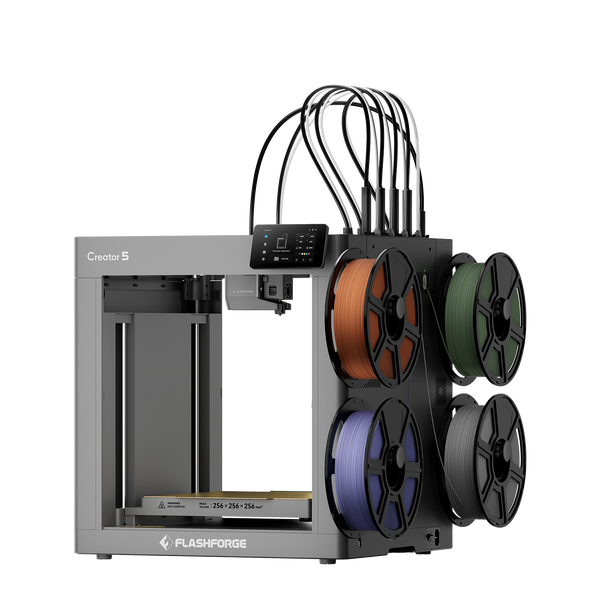
Flashforge Creator 5 4-Toolheads Multi-Color 3D Printer | 500% Faster, Zero Purge Waste
The trade-off is integration. Slicing may work correctly while Flashforge specific transfer, camera, monitoring, or device-management features remain unavailable or vary by model.
Cura
Cura should only be used when a tested profile exists for the exact Flashforge printer. Matching the build volume alone does not account for bed origin, homing behavior, extruder count, temperature limits, or start commands.
Two printers may share the same build area but use different startup instructions, so test a custom profile with a small supervised print. Current product pages for the models covered here list Flash Studio Desktop, FlashPrint, or OrcaSlicer rather than Cura as the standard choice.
PrusaSlicer
PrusaSlicer can work through careful manual configuration, but it is not the standard Flashforge workflow for the current models covered here. Machine settings, nozzle size, extrusion limits, and output commands must all be checked.
Wireless transfer, camera access, and mobile management may remain separate, so this option suits users who understand profile editing.
Quick Selection Table
The table below lists the recommended slicer and other options for each Flashforge printer series. Check the exact model before switching software.
|
Slicer |
Best for |
Main limitation |
|
Flash Studio Desktop |
Current supported printers |
Some older models may lack profiles |
|
FlashPrint |
Older printers and proven profiles |
Fewer connected features |
|
OrcaSlicer |
Advanced users |
Less complete integration |
|
Cura |
Tested custom setups |
Manual settings can cause errors |
|
PrusaSlicer |
Experienced profile builders |
No complete device workflow |
For printers not listed here, check Flash Studio Desktop first, then review the model’s official Wiki or download page. Avoid selecting another machine’s profile based only on a similar build volume, as hardware and machine commands may differ.
Which Slicer Should You Use for Each Flashforge Printer?
Popular Model Compatible Software
Creator 5 and Creator 5 Pro use four independent toolheads, so the slicer needs to handle tool assignments, material settings, nozzle offsets, and multi-tool paths correctly. Flash Studio Desktop brings these controls into one workflow, making it a practical choice for projects that combine several colors or materials.
For instance, a part with a rigid PETG body, flexible TPU sections, and removable supports must keep each material assigned to the correct toolhead throughout slicing. Both printers provide a 256 × 256 × 256 mm build volume, while Creator 5 Pro adds an enclosed structure and active chamber heating up to 65°C for engineering-material workflows.
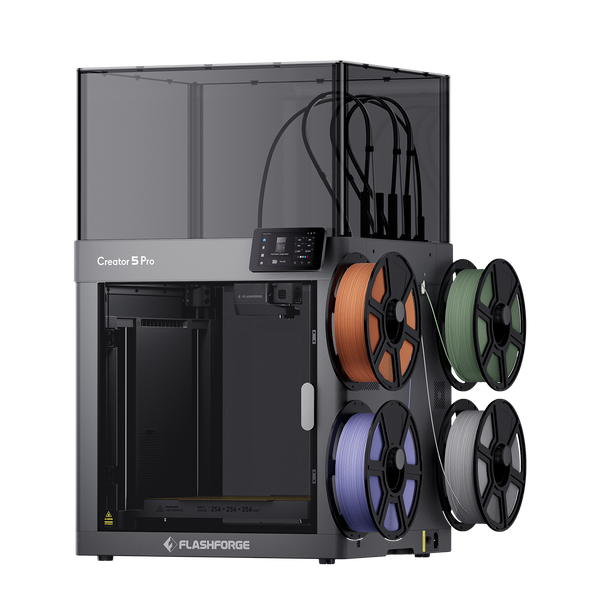
Flashforge Creator 5 Pro 4-Toolheads Enclosed Multi-Color 3D Printer | 500% Faster, Zero Purge Waste
Other Model Software Options
Not every older Flashforge printer is guaranteed to support Flash Studio Desktop. Start by searching for the exact printer model in the software, then check the model’s official Wiki, manual, or download page. If no Flash Studio profile is available, FlashPrint may still provide the correct preset.
Only consider a verified third-party profile when no official option exists. Avoid using a profile from another printer simply because the build volume is the same, as differences in hardware, homing, extruders, and machine commands can cause failed prints or incorrect movement.
Model Compatibility Table
The table below shows the recommended slicer and other available options for each Flashforge printer series.
|
Flashforge printer |
Recommended slicer |
Other options |
|
Creator 5 / Creator 5 Pro |
Flash Studio Desktop |
OrcaSlicer |
|
AD5X |
Flash Studio Desktop |
OrcaSlicer |
|
Adventurer 5M Series |
Flash Studio Desktop |
FlashPrint 5, OrcaSlicer |
|
Guider 3 Ultra |
Flash Studio Desktop |
FlashPrint 5, OrcaSlicer |
|
Other or older models |
Follow model documentation |
FlashPrint or a verified profile |
For older or unlisted models, check the official documentation before using a third-party profile.
How to Move from Older Flashforge Software to Flash Studio
A gradual move is safer than replacing a stable slicer in one step. Existing profiles may contain material settings and machine commands that are not transferred automatically.

Orca-Flashforge Is Now Flash Studio Desktop
Flash Studio Desktop is the current name and download path for Orca-Flashforge. Users searching for the older name do not need to maintain two separate slicers.
Older tutorials may still say Orca-Flashforge, but the official download page now directs users to Flash Studio Desktop.
Flash Maker Is Now Flash Studio Mobile
Flash Studio Mobile is the updated name for Flash Maker. Its main purpose remains printer monitoring and management rather than detailed model preparation.
Someone following an older video may see instructions to open Flash Maker after slicing. In the current workflow, that step is completed in Flash Studio Mobile when the printer and firmware support the app.
Check Whether Your Printer Has an Official Profile
Migration should continue only after the exact printer and nozzle profile have been confirmed. The build volume, toolhead count, nozzle size, and machine type must all match.
Selecting the wrong printer can generate unsuitable instructions. Flashforge identifies an incorrect printer type during slicing as one possible cause of out-of-range errors on the Adventurer 5M Series.
Back Up Your Existing Profiles
Existing profiles should be exported or recorded before any software change. Save temperatures, cooling, flow, retraction, supports, speed, and custom machine commands. Screenshots are useful when direct export is unavailable.
When supported by the slicer, save a 3MF project file as an additional backup. The 3MF specification is designed to transfer full-fidelity 3D model data between applications, platforms, and printers, although the exact process settings retained still depend on the slicer.
Start with the Official Flash Studio Profile
The first Flash Studio test should use the official profile with minimal changes. This creates a clean baseline before older custom settings are added.
A Creator 5 owner can begin with a compact two-color badge instead of a long four-material model. Adventurer 5M users can also refer to Flashforge’s 5M Series Printing Tips tutorial when checking connection and file transfer.
Keep the Old Software Until the New Workflow Is Stable
Keep the previous slicer until several normal projects succeed in Flash Studio Desktop. Test the materials, supports, transfer method, and tool changes used most often. The old program remains a fallback for archived or urgent repeat jobs.
Conclusion
Flash Studio Desktop is the best slicer for most current supported Flashforge printers. It replaces Orca-Flashforge and combines official profiles with slicing, transfer, monitoring, and device management.
FlashPrint still suits older machines and proven workflows. OrcaSlicer is an official alternative for several current models, while Cura and PrusaSlicer should only be used with tested profiles. The safest choice is always the software that accurately matches the printer, nozzle, firmware, and hardware configuration.
FAQ
What Is the Best Slicer for Flashforge Printers?
Flash Studio Desktop is the best starting point for most current supported Flashforge printers. It provides optimized profiles and works with Flash Studio Mobile for supported monitoring and management tasks.
Is Flash Studio Desktop the Same as Orca-Flashforge?
Yes. Flash Studio Desktop is the current name for Orca-Flashforge and keeps the same OrcaSlicer-based foundation. Users searching for the latest Orca-Flashforge download should use the official Flash Studio Desktop page.
Is Flash Studio Mobile a Slicer?
No. Flash Studio Mobile is mainly used to monitor and manage supported printers. Model preparation, support editing, material setup, and slicing should be completed in Flash Studio Desktop.
Can Flashforge Printers Use OrcaSlicer, Cura, or PrusaSlicer?
Several current Flashforge printers officially list OrcaSlicer as compatible. Cura and PrusaSlicer may work when a tested profile exists, but the settings must match the exact machine.
Should I Stop Using FlashPrint?
No. A stable FlashPrint workflow does not need to be replaced immediately, especially on an older printer or repeat job. Test Flash Studio Desktop separately and switch only after the new workflow performs reliably.