


Choosing the best multi-color 3D printer for beginners involves more than comparing the maximum number of colors. Ease of setup, filament-switching method, slicer usability, material waste, maintenance, and long-term operating costs all affect beginner experience.
A simple shared-nozzle system may suit colorful toys, signs, and household projects, while independent toolheads become more useful when users expect frequent color changes, lower purge waste, flexible materials, or engineering applications. The right choice depends on what you plan to print and how much complexity you are prepared to manage.
What Are the Benefits of a Multi-Color 3D Printer for Beginners?
Multi-color printing can make early projects more visually complete while reducing the finishing work required after the model leaves the build plate.
Create Colorful Models Without Manual Painting
A multi-color 3D printer can produce visible color changes directly from the digital model. This is useful for character models, game pieces, labels, educational objects, nameplates, and decorative parts.
Beginners can achieve a more finished appearance without first learning sanding, masking, priming, and painting. Painting still offers more artistic control, but printing colors directly is easier to repeat when producing several copies of the same design.
Reduce Post-Processing and Part Assembly
Without multi-color printing, users often divide a design into separate pieces, print each section in a different filament, and assemble everything afterward.
Printing several colors in one job can reduce these steps, especially for logos, lettering, eyes, buttons, and small contrasting details. It can also reduce visible seams and alignment problems caused by gluing several components together.
Personalize Beginner Projects More Easily
Color assignments make existing files easier to customize. Beginners can add names to signs, create contrasting labels for storage boxes, apply team colors to game accessories, or produce personalized gifts without redesigning the entire model.
The same base file can also be printed repeatedly with different color combinations, giving new users more creative variety while they continue learning basic slicing and printer operation.
Make Learning 3D Printing More Engaging
Multi-color 3d printing introduces useful concepts such as filament assignment, object separation, purge settings, tool changes, and material compatibility.
Because slicer decisions are clearly visible in the finished object, the learning process can feel more interactive for families, classrooms, and first-time makers. Color-coded sections can also make maps, anatomy models, mechanical demonstrations, and labeled parts easier to understand.
Key Factors for Beginners Choosing a Multicolor 3D Printer
The right beginner printer should match the user’s project goals, budget, available space, and willingness to perform routine maintenance rather than simply offering the highest color count.
Project Type and Number of Required Colors
Most beginner projects can be completed with two to four colors. Nameplates, articulated toys, signs, tabletop pieces, and decorative models rarely require a much larger system.
Supporting more colors can increase setup time, storage requirements, and opportunities for loading errors. Unless your preferred models regularly use more than four filaments, a reliable four-color workflow is often more practical than maximum expansion.
Multicolor System and Filament Switching Method
Multi-color printers commonly use either a shared nozzle with an automatic feeding system or several independent toolheads.
A shared-nozzle system is compact and approachable, but it must remove the previous color before the next one reaches the model. This process adds purge material and print time. Independent toolheads keep different filaments in separate nozzles, reducing repeated purging, although accurate toolhead alignment remains important.
Flashforge’s guide to tool changer 3D printers explains how dedicated toolheads differ from shared-nozzle systems and why the switching method affects speed, waste, and material flexibility.

Automatic Setup and Slicer Ease of Use
For beginners, the best 3d printer is not simply the machine with the highest speed or largest color capacity. It should combine reliable calibration, clear software, accessible maintenance, and a workflow that is easy to understand.
Automatic bed leveling, guided filament loading, and automatic nozzle-offset calibration reduce the number of manual steps before printing. The slicer should also provide an official machine profile, clear filament assignment, a reliable preview, and estimates for total print time and material use.
The Flashforge slicer compatibility guide explains how choosing the correct software and printer profile can simplify model preparation and reduce setup errors.
Filament Waste and Color-Switching Time
A model with many short color changes can use significantly more time and material than one with large single-color areas.
Shared-nozzle systems may rely on a purge tower or waste chute to clear residual filament. The amount of waste depends on the number of transitions, the contrast between colors, and the slicer settings. Independent toolheads reduce repeated purging because each color remains inside its assigned nozzle.
Beginners should compare the slicer’s total material and print-time estimates rather than judging cost only from the final weight of the model.
Material Compatibility and Maintenance Requirements
PLA is the easiest starting material for most beginner multi-color projects. PETG is useful for tougher functional parts, while TPU and engineering filaments require closer attention to feeding, drying, nozzle capability, and enclosure conditions.
Before choosing colors, compare available 3d printer filament options and confirm that every spool is compatible with the printer’s feeding system, nozzle temperature, and intended project.
Shared-nozzle systems require a clean feeder path and reliable filament switching. Multi-toolhead printers require clean nozzle tips and accurate offsets. Automation reduces the workload, but routine inspection is still necessary.
Best Multi-Color 3D Printers for Beginners
These three Flashforge models support different beginner paths, ranging from an accessible first four-color workflow to lower-waste printing and engineering-material upgrades.
Best Overall Multi-Color 3D Printer
The Flashforge AD5X is the most approachable option for users trying multi-color printing for the first time.
Its integrated IFS supports four-color printing, while automatic leveling, automatic filament feeding, filament detection, and power-loss recovery reduce common setup interruptions. Its 220 × 220 × 220 mm build volume is suitable for tabletop pieces, nameplates, articulated toys, and many household projects.
AD5X uses one extruder, with different filaments feeding into a shared nozzle. This compact system is easy to understand, but frequent color changes can add purge material and extend total print time.
It is best suited to beginners who want an accessible workflow for colorful PLA, PETG, or TPU projects without moving immediately to a multi-toolhead platform. Flashforge’s product framework also positions AD5X as the accessible four-color model for personal projects and continuous filament feeding.
Best Low-Waste Multi-Color 3D Printer
The Flashforge Creator 5 is better for beginners who expect to print multi-color models frequently and want to reduce repeated purging.
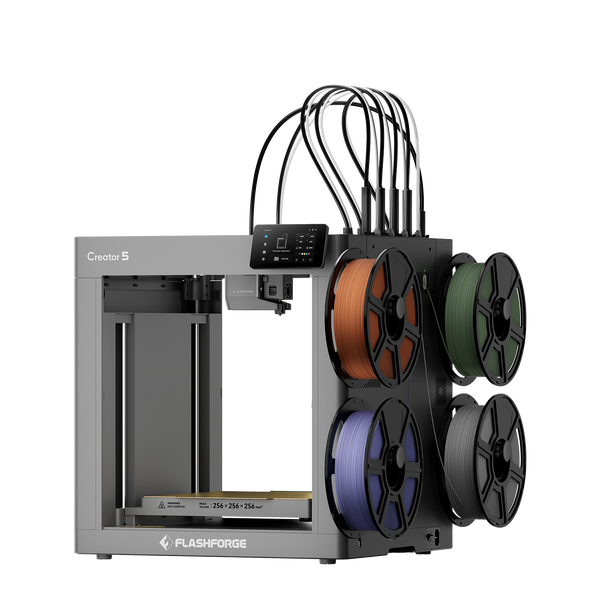
Flashforge Creator 5 4-Toolheads Multi-Color 3D Printer | 500% Faster, Zero Purge Waste
Its four independent FlashSwap toolheads can each remain assigned to a separate color or material. Automatic leveling and automatic toolhead-offset calibration reduce the manual alignment usually associated with multi-nozzle printers.
Creator 5 provides a 256 × 256 × 256 mm build volume and supports materials such as PLA, PETG, TPU, PVA, and BVOH. Its separate toolheads are useful for frequent color changes, soft-and-rigid combinations, and support-material workflows.
The purchase price is higher than that of a shared-nozzle system, but the lower-waste switching method becomes more valuable as the number of color transitions increases.
Best Upgrade-Ready Multi-Color 3D Printer
The Flashforge Creator 5 Pro suits beginners who plan to progress from basic PLA models to enclosed printing and engineering materials.
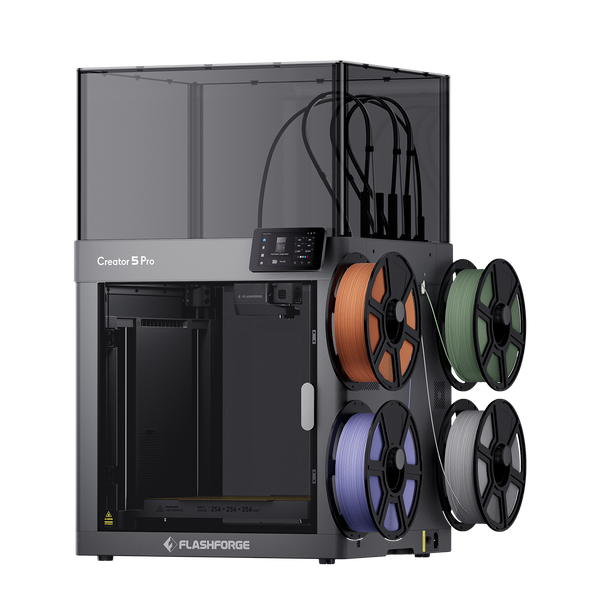
Flashforge Creator 5 Pro 4-Toolheads Enclosed Multi-Color 3D Printer | 500% Faster, Zero Purge Waste
It keeps the four independent toolheads and automatic calibration workflow of Creator 5, then adds a fully enclosed frame, adaptive air circulation, filtration, and an actively heated chamber reaching up to 65°C.
The controlled chamber supports more stable printing with ABS, ASA, PC, PA, and selected fiber-reinforced filaments. Creator 5 Pro also provides a heated bed reaching 120°C and a nozzle temperature of up to 320°C.
It may provide more capability than a casual beginner needs, but it offers room to grow into functional prototypes, engineering parts, and multi-material applications.
Beginner Multi-Color 3D Printer Comparison
|
Model |
Main Selling Point |
Color System |
Best For |
|
Flashforge AD5X |
Simple integrated four-color workflow |
Shared nozzle with IFS |
First-time multi-color printing |
|
Flashforge Creator 5 |
Less repeated purging |
Four independent toolheads |
Frequent color changes and low-waste printing |
|
Flashforge Creator 5 Pro |
Heated chamber and engineering-material support |
Four independent toolheads |
Multi-color engineering parts and prototypes |

How to Calculate the Extra Costs of a Multi-Color 3D Printer
Purchase price is only one part of the budget. When comparing a 3d printer for sale, beginners should also estimate purge filament, replacement parts, storage accessories, electricity use, and routine maintenance costs.
Extra Filament Used for Purging and Prime Towers
The slicer’s estimate should include the model, purge structures, and transition material. Costs rise when a shared nozzle changes repeatedly between contrasting colors.
Before starting a large print, compare different model orientations and purge settings. Reducing unnecessary color transitions can sometimes save more filament than lowering the infill percentage.
Replacement Nozzles and Other Wear Parts
Nozzles, feeder tubes, cutters, build surfaces, and filament-path components wear over time. Abrasive composite filaments may accelerate nozzle wear and should only be used with suitable hardware.
Check the availability and price of common replacement parts before buying. A printer that is easier to service may cost less over several years even when its initial purchase price is higher.
Filament Drying and Storage Accessories
Multi-color printing often means keeping several spools open at the same time.
Sealed containers, desiccant, or a filament dryer may become part of the operating budget, especially for TPU, PVA, BVOH, PA, and composite materials. Dry filament helps reduce stringing, rough surfaces, weak layers, and feeding problems.
Higher Electricity Use From Longer Print Times
Color changes, purge operations, heated beds, and actively heated chambers can extend printing time and increase power use.
The difference varies by printer and project. Use the slicer’s estimated duration together with the printer’s rated power instead of assuming every multi-color print has the same electricity cost.
Maintenance and Calibration Costs
Routine calibration mainly costs time and test filament.
Automatic leveling, guided loading, filament detection, and toolhead-offset calibration reduce this burden. Beginners should still consider how easily blocked paths, worn nozzles, or incorrect tool assignments can be diagnosed and corrected.
Tips for Improving Multi-Color 3D Print Quality
After choosing a printer, a few controlled checks can improve color boundaries, surface consistency, and overall reliability.
Calibrate the Printer Before Each Multi-Color Project
Confirm bed leveling, first-layer adhesion, filament flow, and toolhead offsets before starting a long print.
Recalibration is especially important after changing a nozzle, moving the printer, or experiencing a toolhead collision. A short calibration print costs less than discovering an alignment problem halfway through a large model.
Use Dry and Compatible Filaments
Choose filaments with similar printing-temperature requirements when combining them in one model.
Keep the spools dry and confirm that every color or material is correctly assigned in both the printer interface and slicer. Materials with very different temperatures or cooling requirements may not perform consistently in the same print.
Optimize Purge Volume and Prime Tower Settings
Too little purging can contaminate a light color with a darker one, while too much wastes filament.
Begin with the official slicer profile, inspect a small test model, and adjust purge values gradually. Do not reduce the purge amount aggressively before confirming that the new color appears clean and extrusion remains stable.
Match Print Speed to Model Complexity
High speed works well for large single-color areas, but small text, short color segments, and fine boundaries may print more cleanly at a moderate speed.
Use the slicer preview to identify layers with frequent transitions. Slowing only the detailed sections can protect print quality without unnecessarily extending the entire job.
Test Colors and Settings With a Small Model
Print a compact sample containing the intended colors, fine details, and several transitions before committing to a long project.
This test can reveal color bleed, incorrect assignments, weak adhesion, or incompatible temperatures at a much lower material and time cost.
Conclusion
The best multi-color 3D printer for beginners is the one that makes the complete workflow manageable. Color count matters, but setup, slicer support, switching method, waste, material compatibility, and maintenance have a greater effect on long-term satisfaction.
AD5X is the most accessible choice for a first four-color workflow. Creator 5 is better for frequent changes and reduced purge waste, while Creator 5 Pro provides the clearest path toward enclosed engineering-material printing.
Choose according to the projects you expect to make, not only the maximum number of colors shown on the specification sheet.
FAQ
These common questions can help beginners understand the limitations and possibilities of multi-color printing before starting their first project.
Can a Single-Color 3D Printer Make Multi-Color Prints?
Yes. Users can pause the printer at a selected layer and replace the filament manually, creating horizontal color changes. Separate colored parts can also be printed and assembled.
Detailed color changes within the same layer normally require an automatic feeding system or multiple toolheads.
Does Multi-Color Printing Improve Overall Print Quality?
Not automatically. It improves color integration and may reduce painting or assembly, but surface quality still depends on calibration, filament condition, temperature, speed, and model design.
Additional color transitions can also create opportunities for stringing, color contamination, or small surface artifacts.
Can Multi-Color 3D Printers Blend Colors or Only Switch Filaments?
Most filament-based multi-color printers switch between separate filaments rather than blending them into a new color.
Controlled blending requires a specialized mixing hot end. Ordinary purge transitions should not be treated as predictable color mixing.
Should Beginners Start With Pre-Colored 3MF Files?
Pre-colored 3MF files are useful because they can preserve object separation, color assignments, scale, and other project information.
Users should still verify the printer profile, filament mapping, purge settings, and supports before slicing.
Can Free Multi-Color Models Be Used With Any 3D Printer?
Not always. The geometry may be compatible, but saved tool numbers, color assignments, and slicer settings may not match the user’s printer.
Import the model into compatible slicing software and remap every color before printing.
Do Multi-Color 3D Models Always Need Supports?
No. Support requirements depend on overhangs, bridges, orientation, and geometry rather than the number of colors.
A multi-toolhead printer can use a separate support material, but many well-oriented decorative models can print without supports.